How to refresh your whole Shopify catalogue with studio photos
Give every product in your Shopify store a matching studio photo: pick one scene, make the photos in batches and swap them in without rebuilding a listing.
Most Shopify stores don't have a problem with any single product photo. They have a consistency problem. Products added over two or three years were shot on different tables, in different light, against different backgrounds, and the collection page shows all of it at once.
This guide shows how to refresh the whole catalogue in one go: choose one scene, turn every product photo into a matching studio shot, and put the new images into Shopify without rebuilding a single listing. The Shopify steps come from Shopify's Help Center pages on importing products by CSV and uploading files, checked on 26 October 2026.
Why refresh the whole catalogue at once?
Because shoppers rarely see one product on its own. Collection pages, search results and "you may also like" rows show the first image of several products side by side, and that's where a mix of backgrounds stands out. One great photo next to five phone snaps still looks like a store in progress. The same six products on the same backdrop look like a brand.
It's also less work than it sounds. Refreshing product by product means deciding the look again every time. Refreshing in batches means deciding once.
One scene, chosen once and used for every product: that's what makes a product grid look like a brand.
What a catalogue refresh looks like

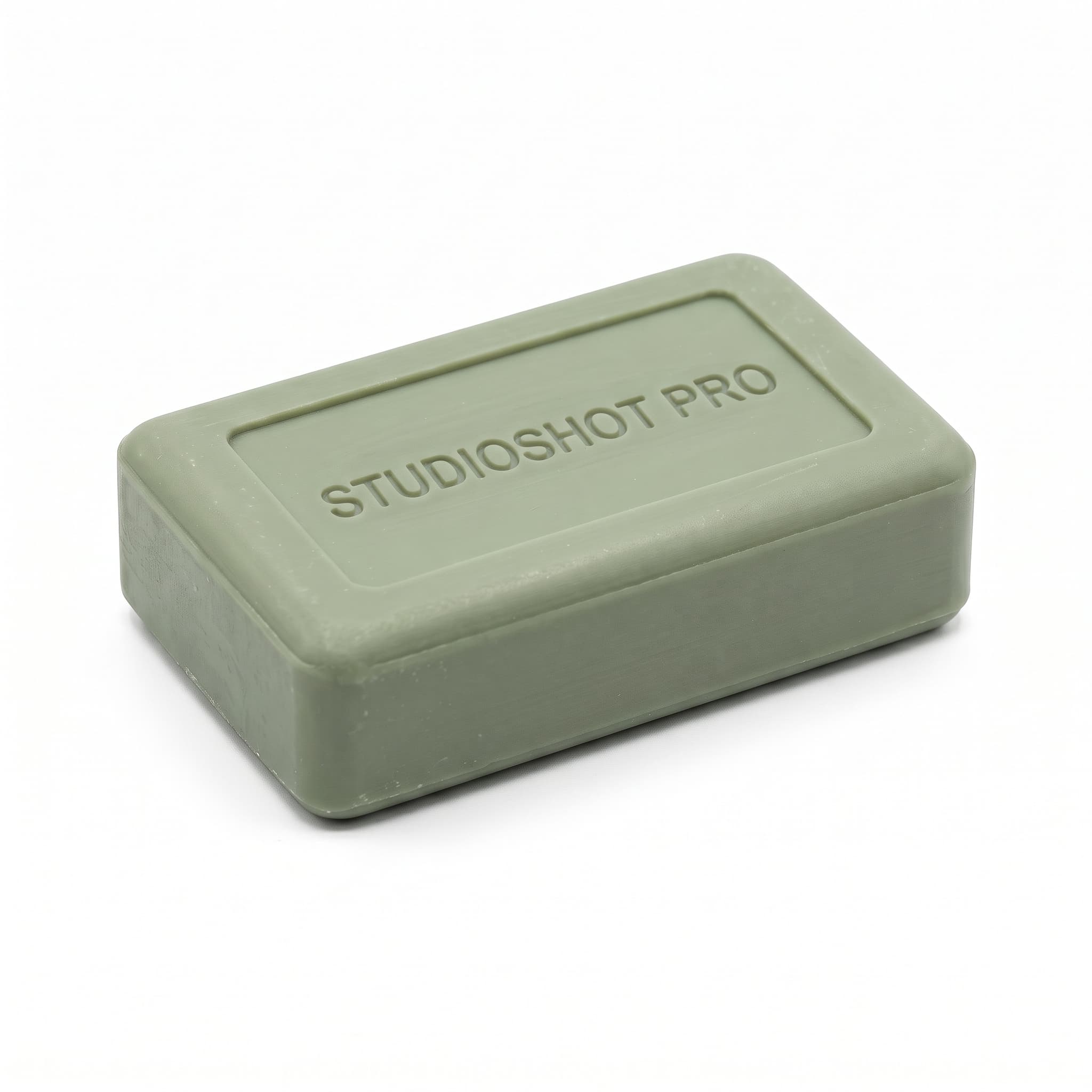

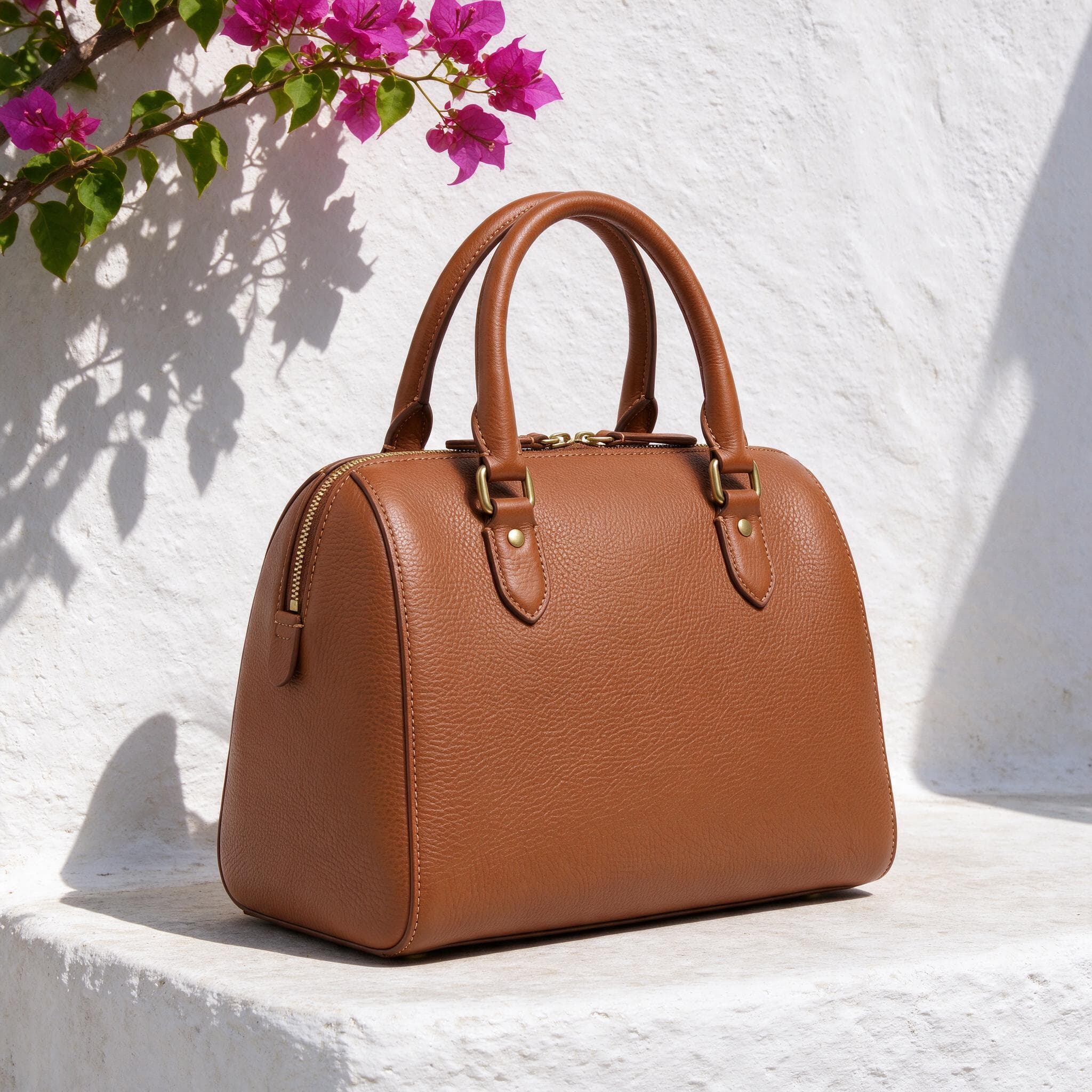
Cycladic bougainvillea

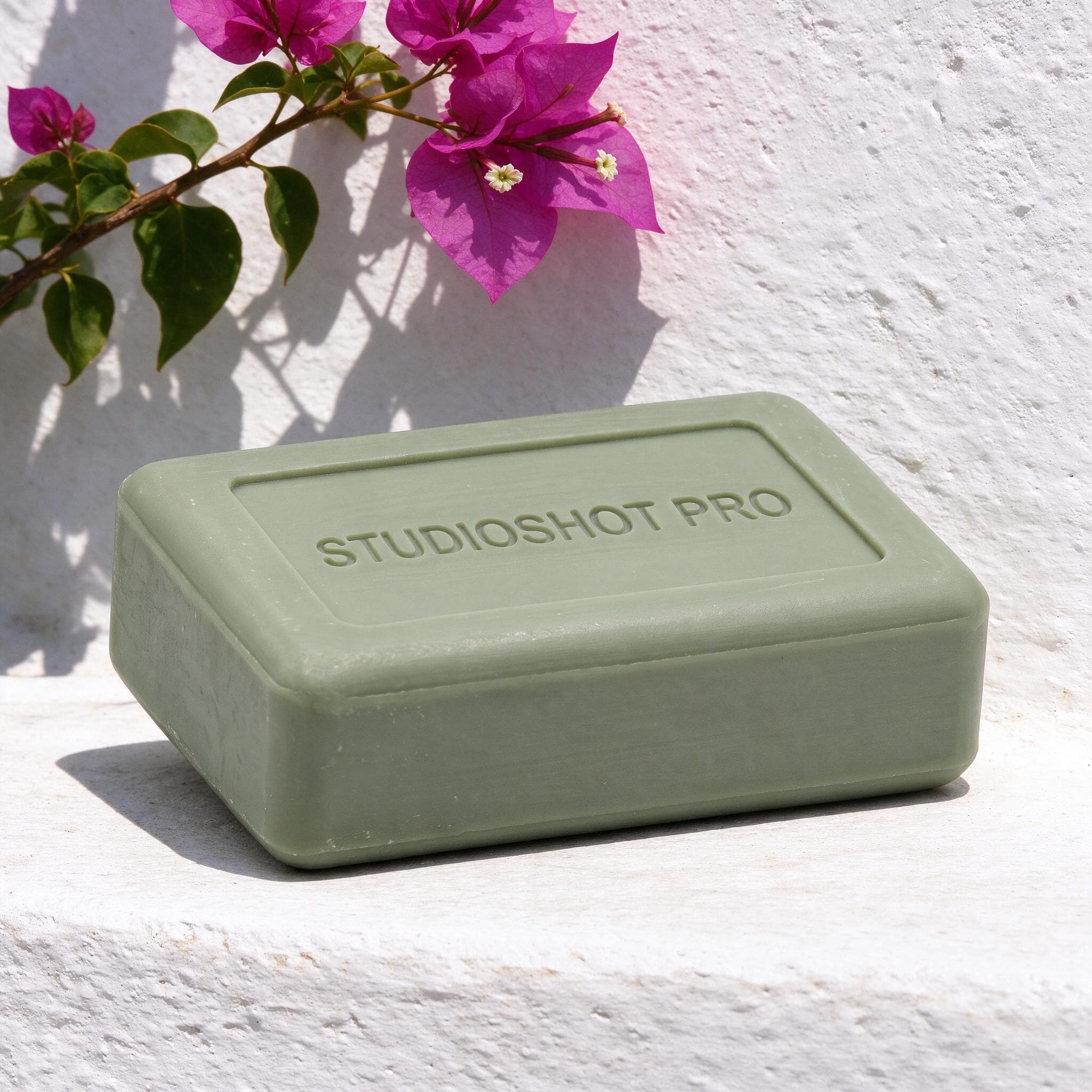


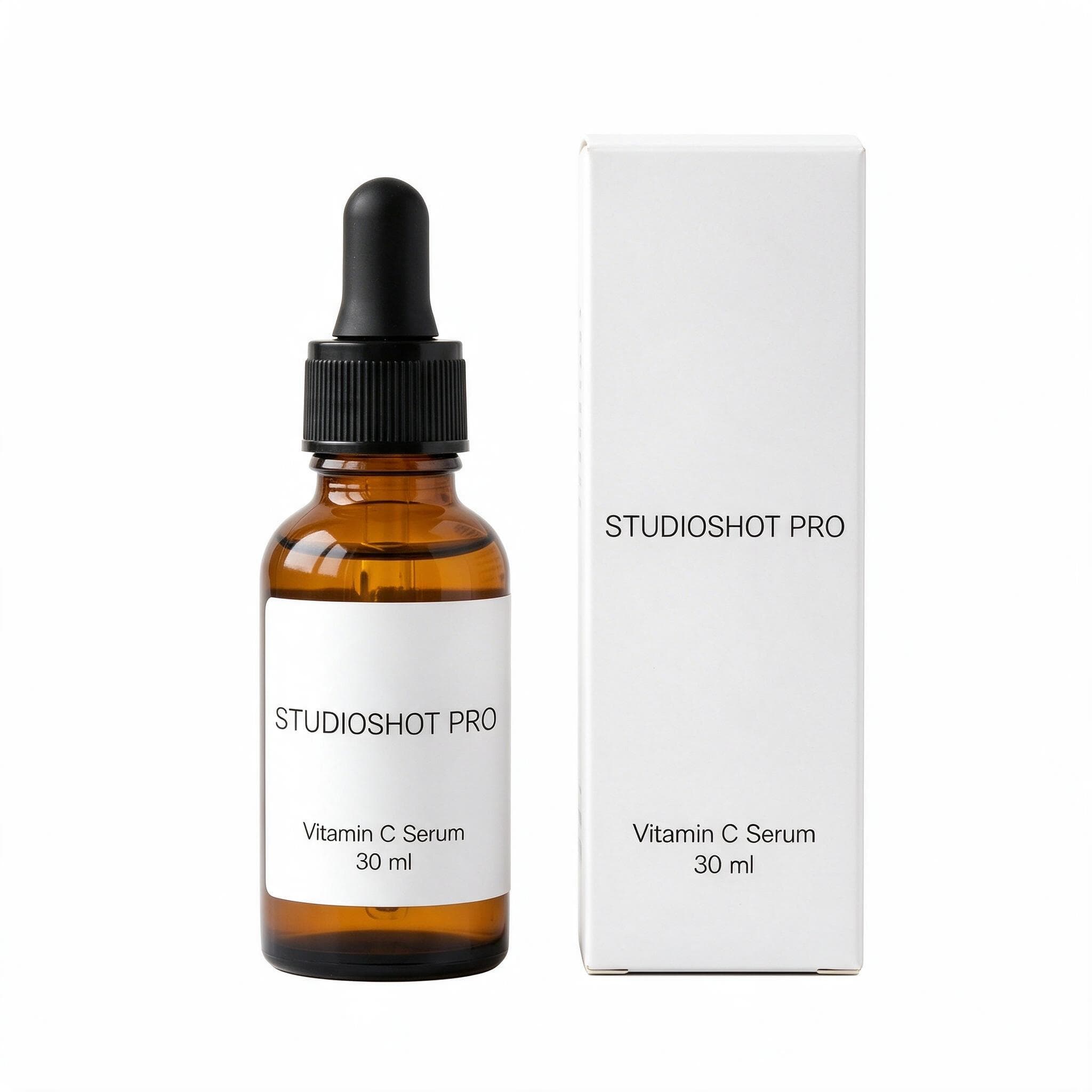
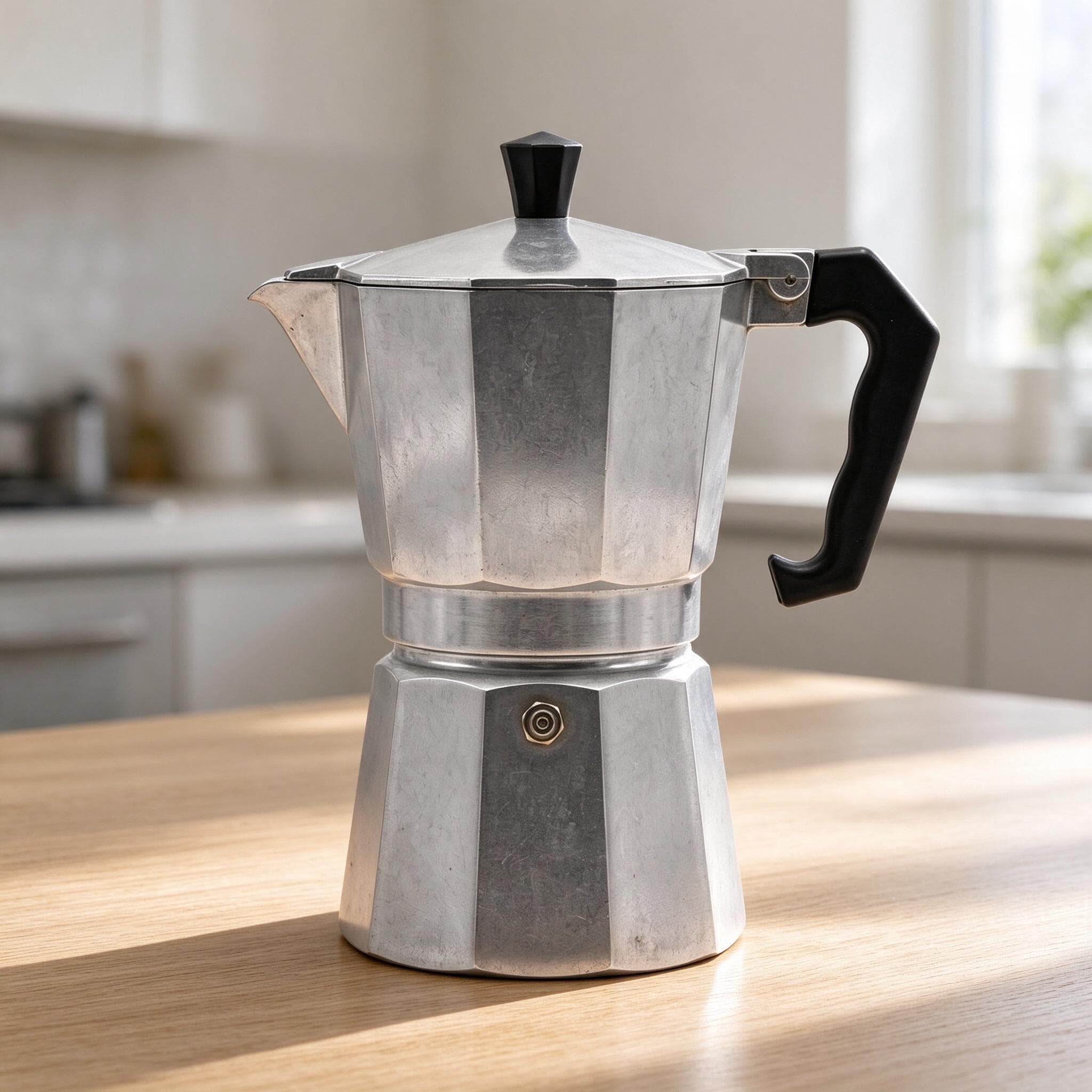
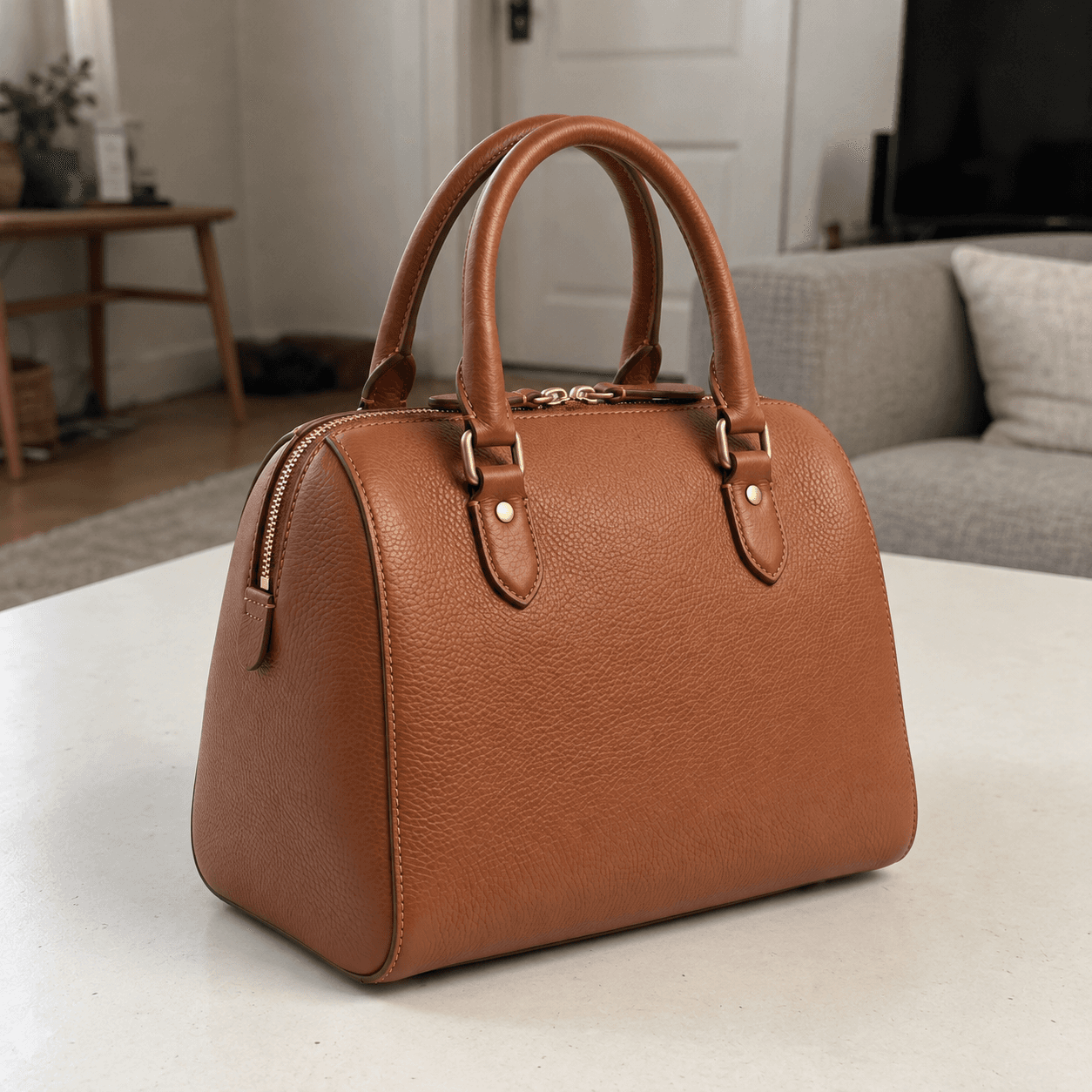
The products above were photographed on whatever surface was nearby. Each one kept its shape, label and colour, and all five ended up on the same sunlit whitewashed ledge beneath bougainvillea. That's the effect to aim for across your store: different products, one look.
Step 1: Take stock of what you have
In your Shopify admin, go to Products and click Export to download a CSV of your catalogue. It lists every product's handle and the addresses of its current images, and it's your backup if you change your mind later.
Then open a collection page on your live store, on a computer and on a phone, and look at the first images only. Note the products that clash: dark backgrounds next to white ones, tight crops next to wide ones, photos that look small or soft. Our free Shopify photo checker tests a photo's size, shape, sharpness and light against Shopify's recommendations, in your browser.
Step 2: Choose one scene per collection
The scene is the decision that makes the refresh work, so make it once, for a whole collection or the whole store:
- A plain studio backdrop is the safest choice for a large, mixed range. It keeps the attention on the product and suits every theme.
- A styled scene, such as marble, linen or a sunlit plinth, gives a smaller range a stronger personality. Choose one that suits what you sell: warm wood for kitchenware, soft linen for skincare.
- One scene per collection works if you sell very different lines. Keep it the same within each collection.
- Your own scene, described in your own words and saved to your library, if nothing in the library feels like your brand. A saved scene never changes, so products you add next year will match the ones you refresh today.
Look at the scene next to your theme, too. A dark scene can feel heavy in a store with a white background, and a busy one can compete with the product names and prices in the grid.
Step 3: Gather the source photos
The catalogue starts from photos you already have, so they don't need to be beautiful, only clear:
- One product per photo, fully in frame, with a little space around it.
- In focus and evenly lit. Daylight from a window is enough.
- True to the product's real colours. The scene changes around the product, not the product itself, so a photo that's too yellow or too dark stays that way.
Your current Shopify images often work as sources. If a product only has a dark or blurry photo, retake it; our guide to taking product photos with your phone covers it in a few minutes.
Step 4: Make the photos in batches
In StudioShot Pro's catalogue, upload your products, choose the scene, and every product comes back in it. You can upload up to 50 products per batch, so a 200-product store is four batches in the same scene.
- Work one collection per batch where you can. It's easier to see whether the results sit well together.
- Check every result at full size against the real product: labels, colours and small details, before anything goes live.
- Rename each download after its product before uploading it, for example linen-apron-sage.jpg. Shopify keeps the file name once the image is uploaded, and a descriptive name tells search engines more than IMG_4031.jpg.
Downloads carry AI-generation metadata and C2PA Content Credentials, which Google Merchant Center requires for AI-made product images. If your store feeds Google Shopping, upload the files as they were downloaded, without passing them through an editor that strips metadata.
Step 5: Put the new photos into Shopify
How you swap the images depends on the size of your catalogue.
For a few dozen products, use the product page. Open each product, add the new photo in the Media section and drag it to the first position. The first image is the featured image, which Shopify shows on collection pages and in search results. Keep useful close-ups and detail shots after it, and remove the photos the new one replaces.
For a large catalogue, use a CSV import. A CSV can only hold text, so the images have to be online first:
- Go to Content → Files and click Upload files. You can select up to 200 files at a time.
- Click the Link button beside each file to copy its address.
- In the CSV you exported in step 1, paste each new address into the Product image URL column of the product's first image row (Image position 1), and fill in the Image alt text column.
- Go to Products → Import, upload the edited CSV and select Overwrite products with matching handles.
Try the import with two or three products before you run the whole catalogue. When you overwrite, Shopify treats a blank column as "clear this value", and an import fails if it points to images you deleted from the store after exporting, so leave the old images alone until the import has finished.
Step 6: Write alt text while you're at it
A refresh is the easiest moment to fix alt text, because you're touching every image anyway. Describe the product the way a shopper would search for it, for example "Sage-green olive oil soap bar, 100 g". Shopify recommends 125 characters or fewer. On the product page, add it in the media editor; in a CSV, use the Image alt text column.
Will new photos affect my Shopify SEO?
Changing a product's images doesn't change its address, title or description, so the product page keeps its place in search. The new images get new file addresses, which Google finds the next time it crawls the page. With descriptive file names and alt text, they stand a better chance in image search than the photos they replace.
Step 7: Check the store, then keep the scene
Open your collection pages on a computer and on a phone and scroll the whole grid. Every first image should share the same backdrop, the same light and roughly the same space around the product. If one product looks too big or too small next to the others, make it again from a photo with a looser or tighter crop.
Then keep the scene. When you add a product, make its photo in the same scene, and the new listing matches the old ones from day one. That's what the catalogue is for: adding or refreshing photos as your range changes.
Which plans include the catalogue?
The catalogue, photoshoots and your own scenes are included in the Pro and Max plans. Pro includes 100 images a month and Max 300, so a large store can refresh one collection a month and keep new products matching as they arrive.
For Shopify's size and format requirements, see our Shopify product image size checklist, and for the whole workflow, our page on product photos for Shopify.