WooCommerce
Product photos for your WooCommerce shop
WooCommerce resizes every product photo to the sizes your theme needs. Upload consistent images that are large enough, and the rest takes care of itself. Here's how.
3 free images. No card needed.
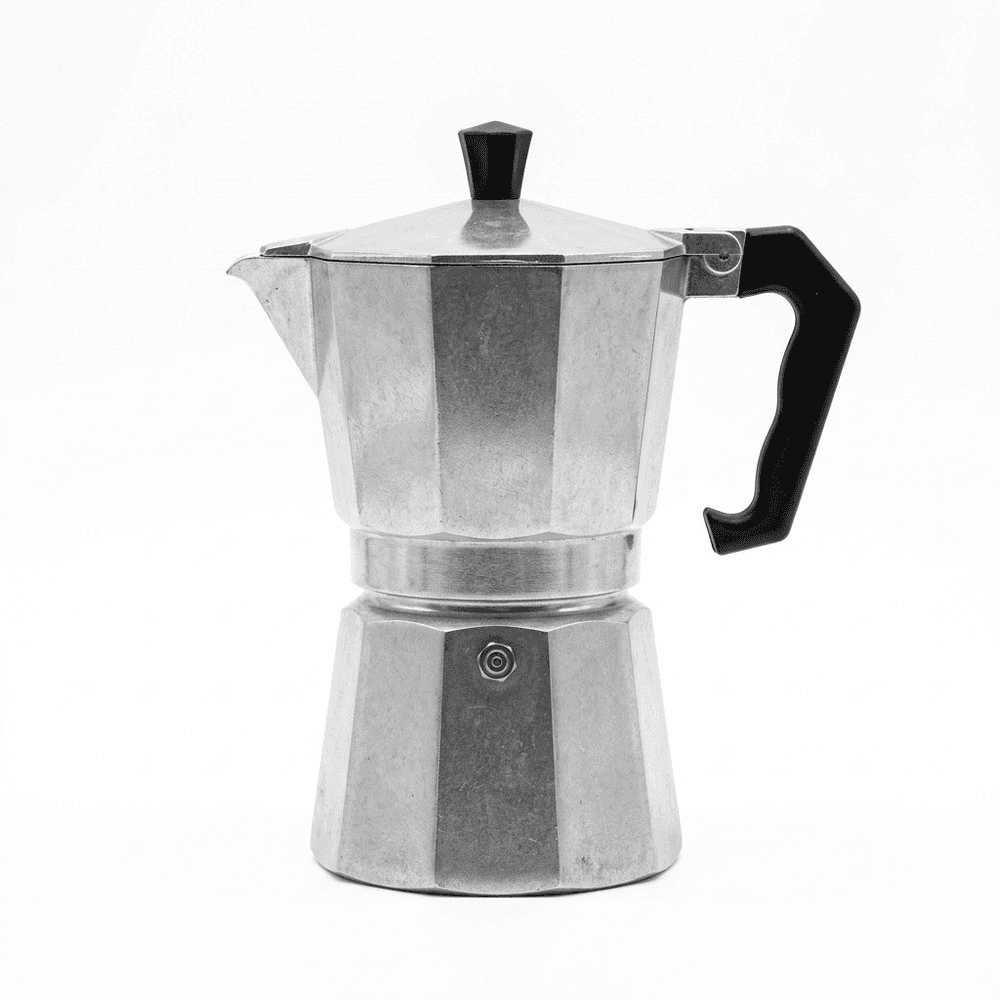
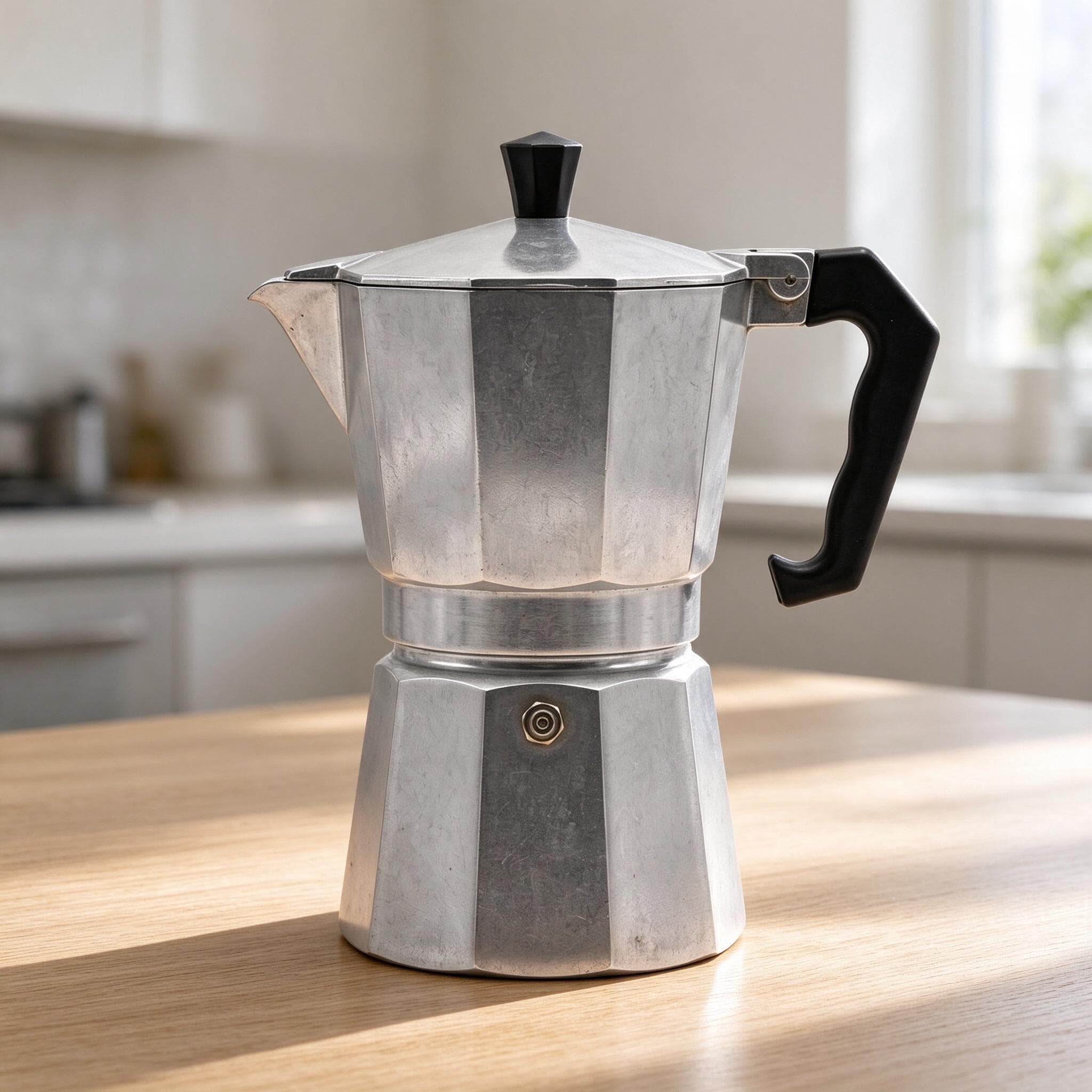

1.25×
as likely to sell with better photos
In a Cornell Tech study of real second-hand listings, run with eBay, handbags with higher-quality photos were 1.25 times as likely to sell as those with lower-quality photos. For shoes, it was 1.17 times.
3 free images. No card needed.
WooCommerce product image sizes
WooCommerce makes three copies of every product image you upload. These are the defaults; your theme can set its own, so check its documentation too.
| Image | Default size | Where it appears |
|---|---|---|
| Single product image | 600 px wide, uncropped | Main image on the product page |
| Thumbnail | 300 px wide, cropped square (1:1) | Shop and category pages |
| Gallery thumbnail | 100 × 100 px, always square | Small images under the main image |
The full upload checklist, and how to fix blurry or cut-off images: our WooCommerce product image size checklist.
How to change the image sizes
In WordPress, go to Appearance → Customize → WooCommerce → Product Images. There you can set the width of the main image and of the thumbnails, and how thumbnails are cropped: 1:1 square, a custom ratio, or uncropped. If your theme sets its own sizes, only the cropping option appears.
Changes only show once the thumbnails have been regenerated at the new size. If old images keep their old shape, a plugin such as Regenerate Thumbnails rebuilds them.
What size to upload
The defaults are small, but upload larger originals. WooCommerce makes the smaller copies from them, and product-page zoom and high-resolution screens use the full image. Our recommendation, rather than a WooCommerce rule: square images of at least 1200 × 1200 px, or 2000 × 2000 px if your theme has zoom.
Square originals are the safest choice because the default thumbnail crop is square. A tall or wide photo loses its edges in the shop grid, and products can lose their tops or sides.
Making WooCommerce product photos with StudioShot Pro
Photograph the product
Use your phone, in daylight. Leave space around the product so the photo can be cropped square without cutting anything off.
Pick one backdrop for every main image
Use the same studio backdrop for the product image of every product, so shop and category pages look consistent.
Add scenes for the gallery
Lifestyle scenes, such as a kitchen counter or a gift box, work well in the product gallery. They're included from the Pro plan.
Upload to WooCommerce
In WordPress, open Products and edit the product. Set the studio shot as the Product image and add the others under Product gallery.
Tips for better WooCommerce product images
- Keep one aspect ratio across the shop, ideally the same as your thumbnail crop.
- Use a plain backdrop for every product image so category pages look tidy.
- Fill in the alt text field in the WordPress media library for each image.
- Rename files before uploading: WordPress uses the file name in the image URL.
- Use JPG for photos and an image optimisation plugin to keep pages fast.
Questions about WooCommerce product photos
What is the best image size for WooCommerce products?
Upload square images of at least 1200 × 1200 px, or 2000 × 2000 px if your theme zooms. WooCommerce's defaults, 600 px wide on the product page and 300 px for thumbnails, are made from your upload.
Why are my WooCommerce product images cropped?
The default thumbnail crop is a 1:1 square, so photos that aren't square lose their edges in the shop grid. Upload square images, or change the crop to Uncropped or Custom under Appearance → Customize → WooCommerce → Product Images.
Why do my WooCommerce images look blurry?
Usually the original is too small, or the theme shows images larger than the size WooCommerce generated. Upload larger originals, and regenerate thumbnails after changing the image settings.
Which file format should I use?
JPG for product photos: it keeps files small with no visible loss. StudioShot Pro downloads JPGs with no watermark, and you can use them commercially on every plan.