Shopify
Product photos for your Shopify store
Shopify recommends square product images of 2048 × 2048 px. Here's what that means for your store, and how to get consistent, studio-quality photos from a phone shot.
3 free images. No card needed.

1.25×
as likely to sell with better photos
In a Cornell Tech study of real second-hand listings, run with eBay, handbags with higher-quality photos were 1.25 times as likely to sell as those with lower-quality photos. For shoes, it was 1.17 times.
3 free images. No card needed.
Shopify product image requirements
Shopify accepts large images and resizes them for your theme, so the limits are generous. What matters more is consistency: when every photo in a collection has the same shape and style, the grid looks tidy and products are easy to compare.
| Shopify | |
|---|---|
| Recommended size | 2048 × 2048 px for square images |
| Maximum size | 5000 × 5000 px, or 25 megapixels |
| File size | Under 20 MB |
| Formats | PNG and JPEG recommended; WebP, HEIC, GIF, TIFF, BMP and SVG also accepted |
| Aspect ratio | Any, but keep it the same across a collection |
Every requirement in detail, with how to check an image's size: our Shopify product image size checklist.
StudioShot Pro downloads JPGs. Shopify accepts them, and they keep file sizes small, which helps your pages load quickly.
Why consistent photos matter on Shopify
Most Shopify themes show products in a grid on collection pages and on the home page. If one product sits on white, the next on a wooden table and a third is a wide landscape shot, the images display at different sizes and the store looks less trustworthy.
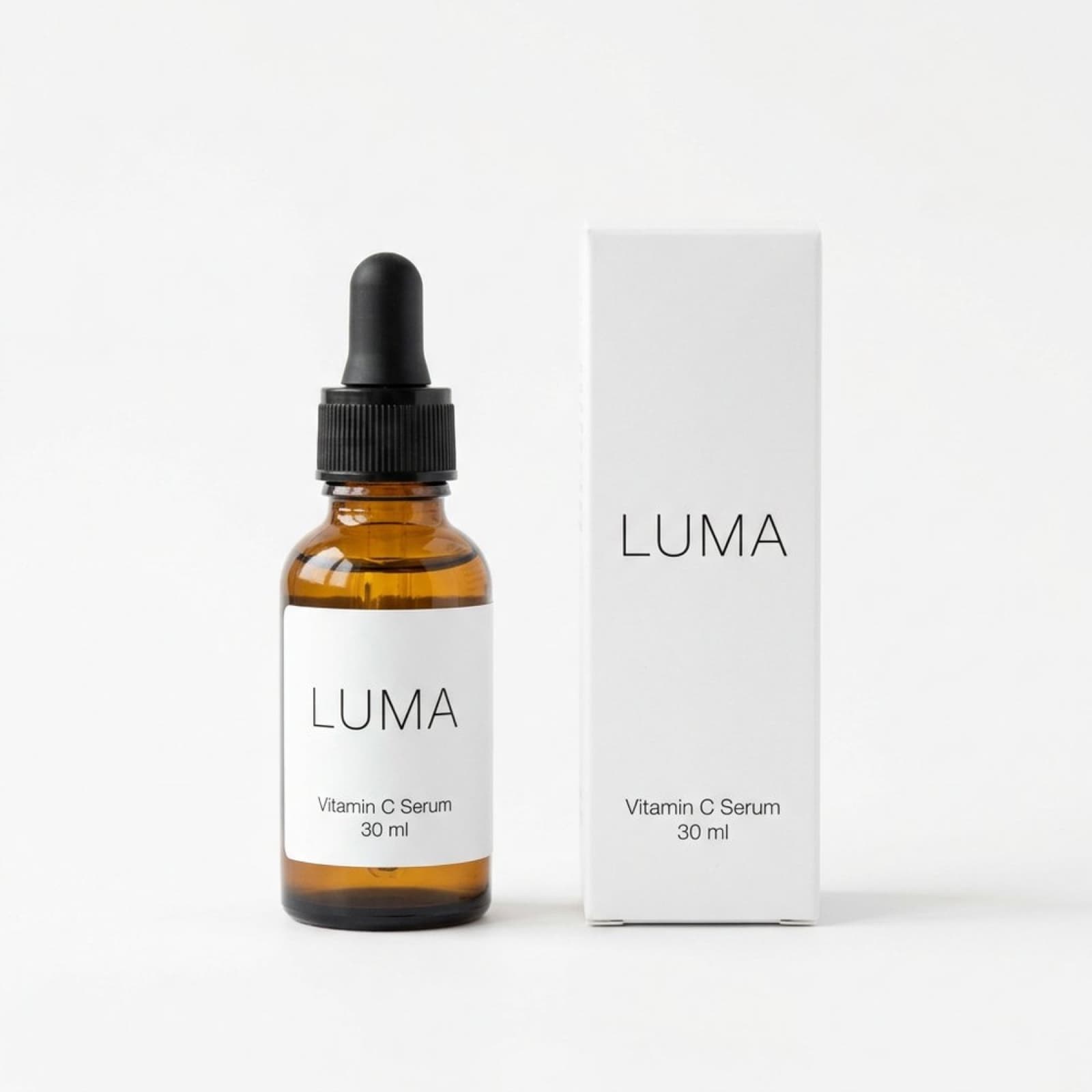
The simplest rule: choose one aspect ratio (square suits most themes), one backdrop, and use them for every product's first image. Use the other image slots for lifestyle shots, details and a sense of scale.
How to make Shopify product photos with StudioShot Pro
Photograph the product
Use your phone, in daylight, with the product filling most of the frame. Leave a little space around the edges so the image can be cropped square.
Pick a backdrop for the main image
Choose one studio backdrop and use it for every product's first image, so your collection pages look consistent.
Add lifestyle scenes
For the next image slots, pick scenes that show the product in use: a kitchen, a shelf, a gift box. Lifestyle scenes are included from the Pro plan.
Upload to Shopify
Download the JPGs and add them under Media on the product's page in your Shopify admin. Drag the studio shot to the first position: it becomes the featured image.
Tips for better Shopify product images
- Use one aspect ratio for every product in a collection. Square works with most themes.
- Make the first image a clean shot on a plain backdrop. It's the one shown in collections and search results.
- Add alt text to every image in Shopify's media editor. It helps search engines and shoppers using screen readers.
- Name files before uploading, for example ceramic-mug-white.jpg rather than IMG_4031.jpg.
- Keep originals a sensible size. Shopify resizes them, but smaller files upload faster.
Questions about Shopify product photos
What size should Shopify product images be?
Shopify recommends 2048 × 2048 px for square product images. You can upload images up to 5000 × 5000 px (25 megapixels), as long as each file is under 20 MB.
Do Shopify product images have to be square?
No, but every product in a collection should share the same aspect ratio. Square is the safest choice because most themes are designed around it.
Can I upload JPGs to Shopify?
Yes. Shopify recommends PNG and JPEG, and accepts WebP, HEIC and other formats too. StudioShot Pro downloads JPGs, ready to upload.
Can I use the images in ads and emails as well?
Yes. Images made with StudioShot Pro have no watermark and can be used commercially on every plan, in your store, ads, emails and social posts.